










One hero image has to do the whole job of saying what a page is about. Several, shown in turn, can say more without taking any extra room.
The Container block can take a set of images as its background and move between them.
Before You Start
- Edition: Pro — rotating image backgrounds needs Nexter Blocks Pro.
- Block to enable: Container, switched on under Nexter > Blocks in your WordPress dashboard.
- A Container block with content inside — see the Container block guide.
- Several images of similar tone, so the text stays readable across all of them.
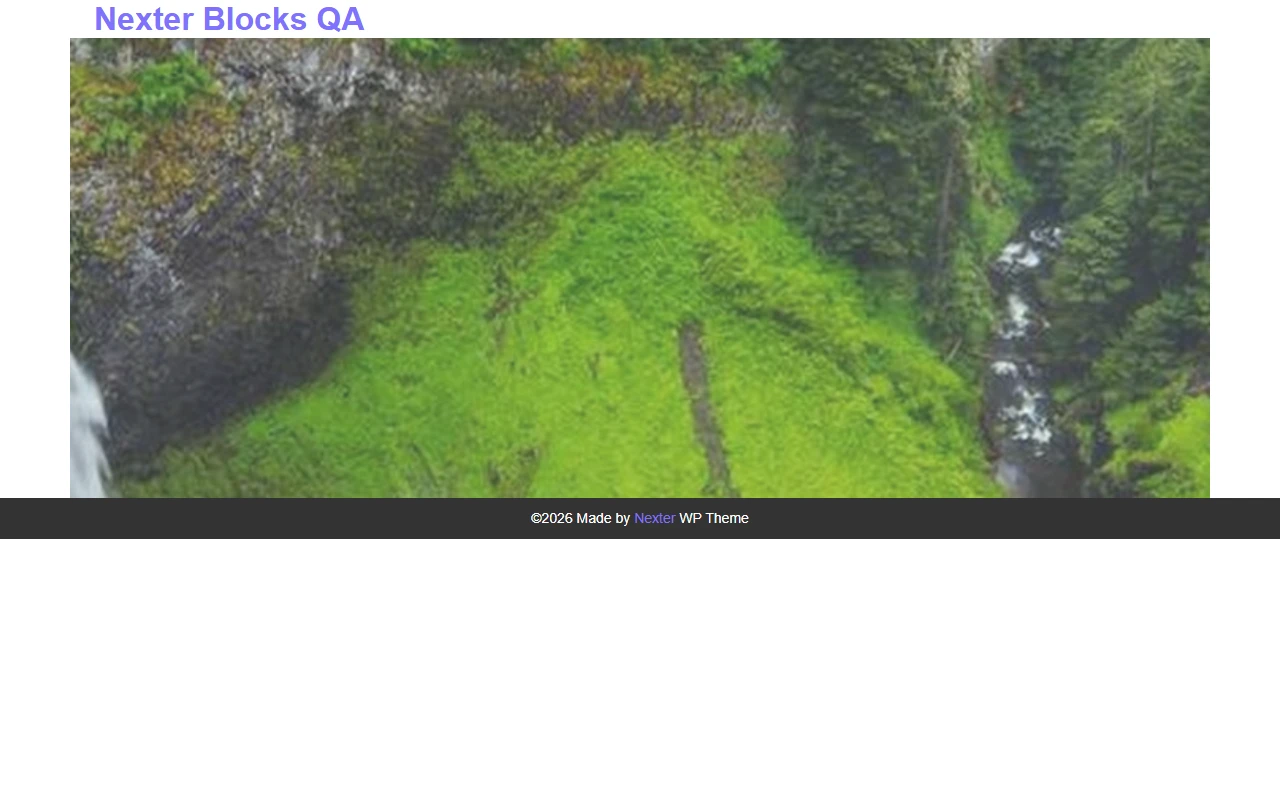
Preview
Steps
- Select your Container and set its background to the gallery option.
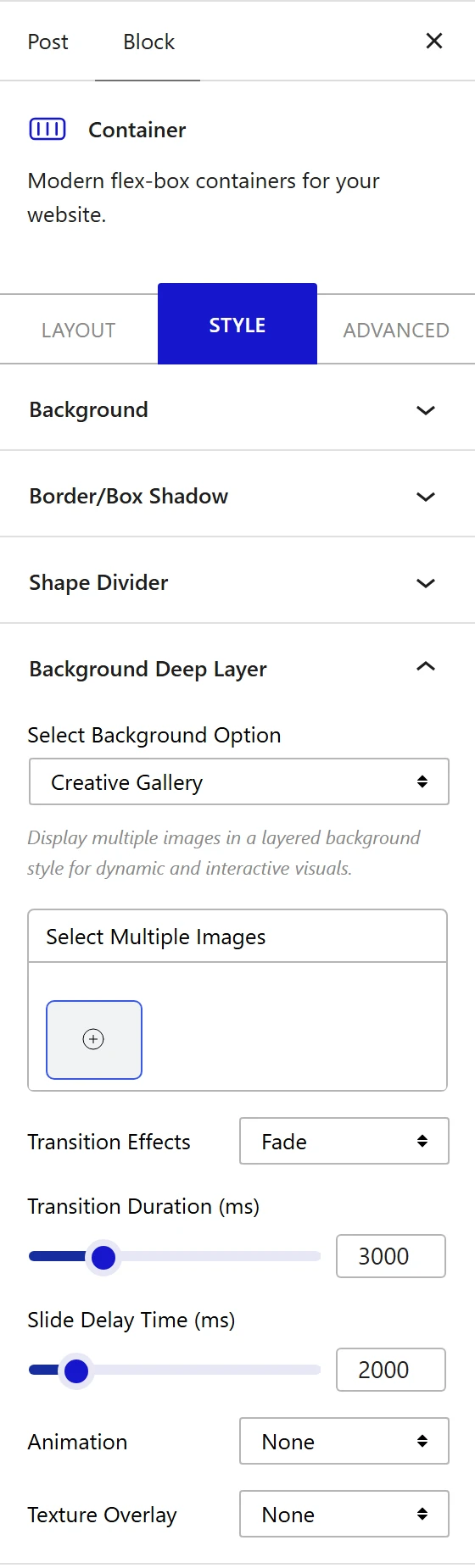
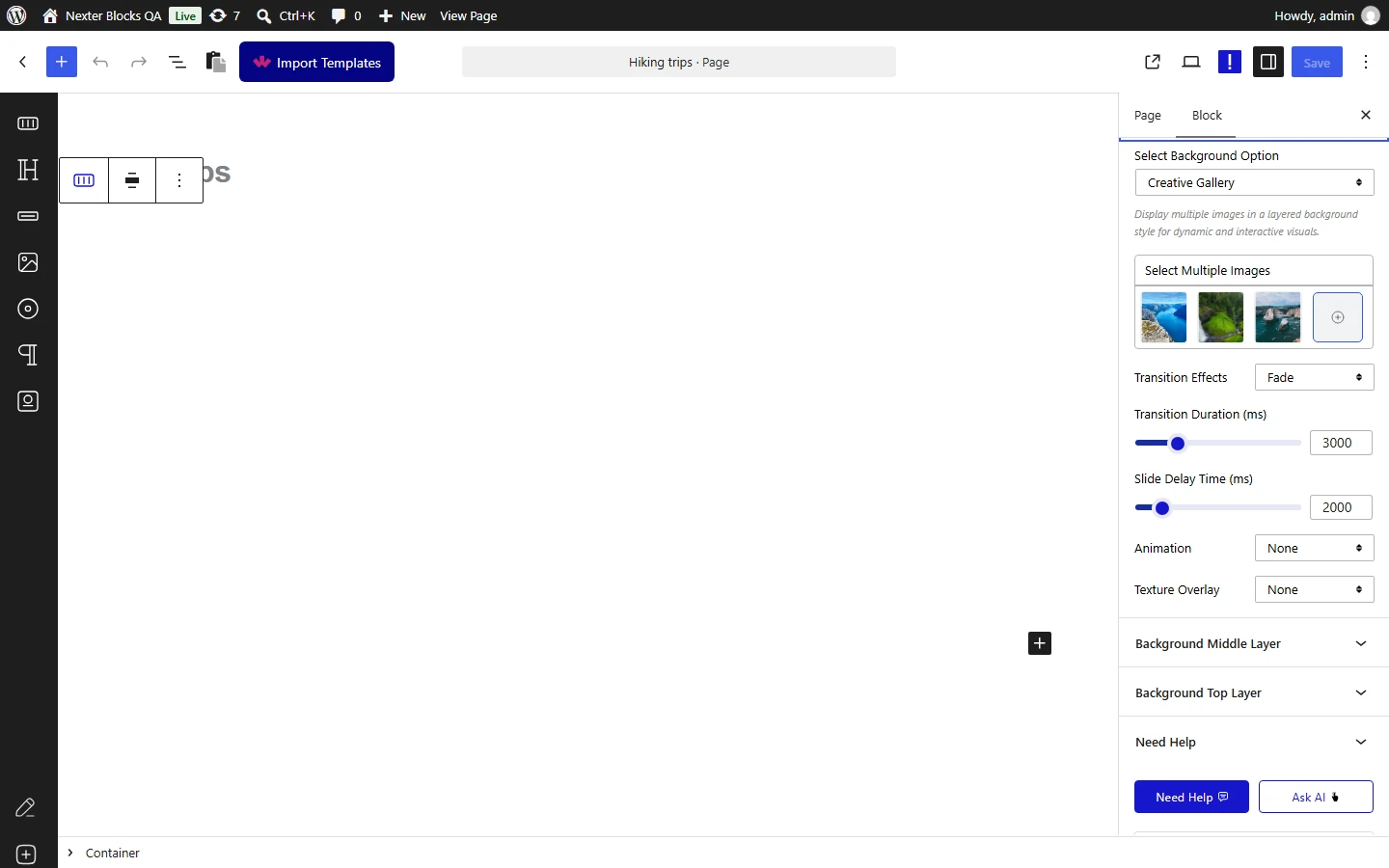
- Add the images that should rotate.
- Choose the transition between them.
- Set how long each image is shown.
- Add an overlay if text sits on top, then publish.
How It Behaves
The images become a slideshow on the container’s background layer.
- The background option comes first. Measured: the individual effect settings do nothing on their own — the container only renders an effect once the background type that owns it is chosen.
- Measured on a published page: choosing the gallery background rendered the container with
row-img-slideon its background layer. - The transition and timing are settings on the slideshow, so the same image set can feel calm or restless depending on how long each one is held.
- All the images load, not just the first, which is the main cost of this effect.
- Your content stays still while the images change behind it.
- Measured with Nexter Blocks Pro deactivated: this effect disappears completely and the container renders as a plain section, with nothing on the page to say why.
Limitations
Known issue on version 5.0.6: on the published page the gallery is painted over any heading or text inside the same Container, so the text is hidden behind the images even though it shows in the editor. This has been reported to the development team. Until it is fixed, put the text in a separate Container above or below the gallery, or choose a different background type.
- Pro only — measured with Nexter Blocks Pro deactivated, no slideshow markup is rendered and the section is plain.
- Every image is downloaded. Five background images is five times the weight of one — compress them hard and keep the set small.
- Mixed tones break your text. If one image is bright and the next dark, white text works for only half the cycle. An overlay fixes this.
- Hold each image long enough to be seen. Anything under a few seconds reads as a flicker.
- For a single image with movement instead, see Ken Burns or parallax.
Troubleshooting
Only the first image shows
Check there is more than one image in the set and that a hold time is set. Then check Nexter Blocks Pro is active.
Nothing renders at all
The gallery background type has to be selected, not just the images chosen. Measured, images alone render nothing.
The page is slow to load
Every image in the set loads with the page. Reduce the number and compress them.
The text is readable on some images and not others
Add an overlay between the images and the content, or choose a set with a consistent tone.
