










Images carry most of the weight of a page, in both senses — they do the visual work and they are usually the largest thing the visitor downloads.
The Image block adds one with the controls that matter: the size served, an optional caption, and an optional link.
Before You Start
- Edition: Free — works in Nexter Blocks (free) and with Nexter Blocks Pro.
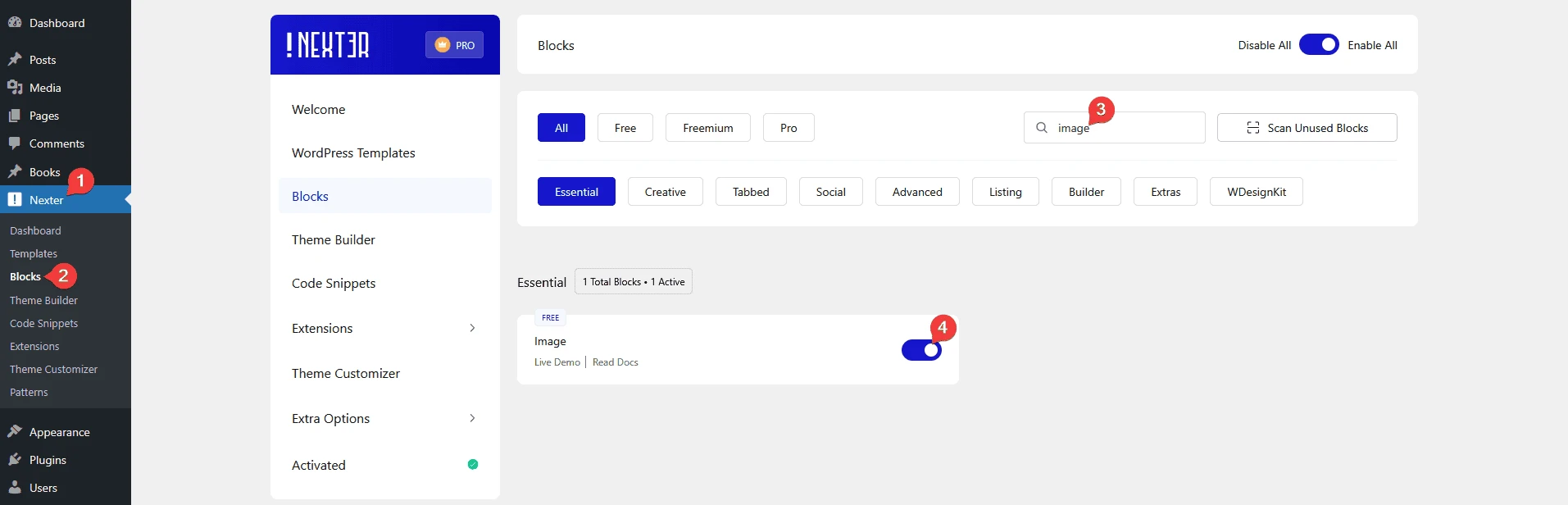
- Block to enable: Image, switched on under Nexter > Blocks in your WordPress dashboard.
Video Tutorial
Steps
- Add the Image block to your page.
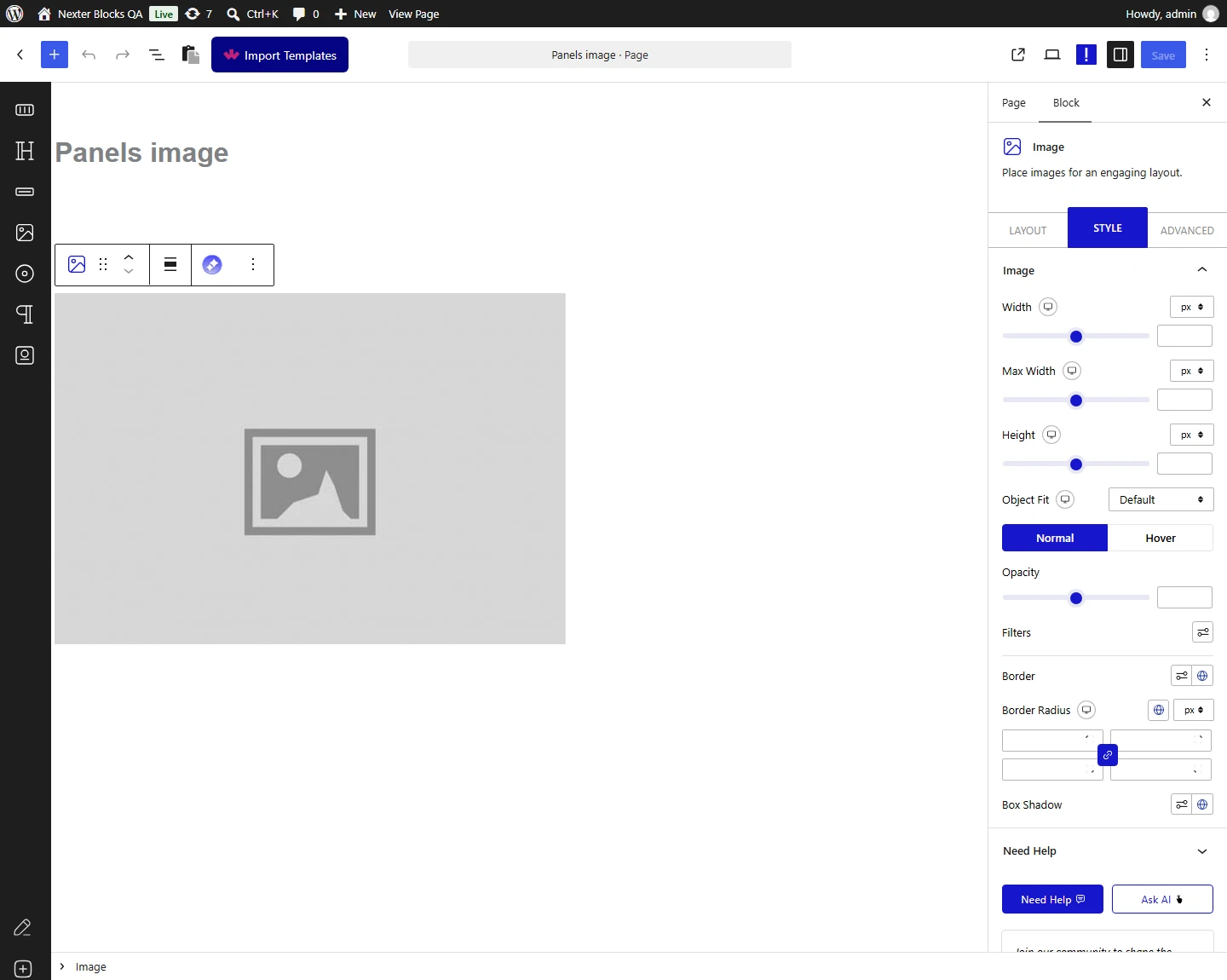
- Choose an image from the Media Library or upload one.
- Pick the image size to serve — thumbnail through full.
- Set the caption mode, and type the caption if you chose a custom one.
- Add a link if the image should be clickable, then publish.
How It Behaves
The Image block renders a standard figure, so captions and links behave the way a reader expects.
- Captions are a mode, not just a text field. Measured: with the caption set to custom the text rendered and the block grew by 39 pixels; with the mode set to none, the same caption text was not rendered at all.
- A link wraps the image — measured, the whole picture becomes clickable.
- The image size you choose is the file that is served, so pick a size near the space it occupies rather than serving a full-size file into a small slot.
- An empty block still takes up space — measured with no image chosen, the figure rendered 412 pixels tall rather than collapsing.
- Measured with Nexter Blocks Pro deactivated: this block renders identically. It is a free block.
Limitations
- One image per block. For a set of images use a gallery or listing block.
- Alt text comes from the Media Library, not from this block — set it on the attachment so every use of the image inherits it.
- Caption text is kept when you switch the mode to none, measured, but it is not shown — so a caption you cannot see may still be stored.
- The block does not compress or convert images; that is your media pipeline’s job.
Troubleshooting
My caption is not showing
The caption mode is set to none. Measured: in that mode the caption text is ignored even when it is filled in. Switch the mode to the caption type you want.
There is a large empty gap where the image should be
No image has been chosen. Measured: an empty Image block still renders a figure around 412 pixels tall. Choose an image or remove the block.
The image looks blurry
A small image size is being served into a larger space. Choose a larger size, or upload a bigger original.
The image is not clickable
Add a link on the block — measured, that wraps the whole image in the link.
