










Some features need a sentence of explanation, and a pricing table is the worst place to put one — it is a column built for short lines.
A tooltip keeps the row short and puts the detail one hover away, for the readers who want it.
For every Pricing Table setting in one place, see the Pricing Table feature guide.
Before You Start
- Edition: Pro — this feature needs Nexter Blocks Pro. Measured on a published page: without Pro it has no effect at all.
- Block to enable: Pricing Table, switched on under Nexter > Blocks in your WordPress dashboard.
Steps
- Add the Pricing Table block and set Content Style to Stylish List.
- Open the feature row you want to explain and switch its Tooltip on.
- Write the Tooltip Text for that row.
- Set the tooltip’s trigger and placement — these are block-level settings shared by every tooltip in the table.
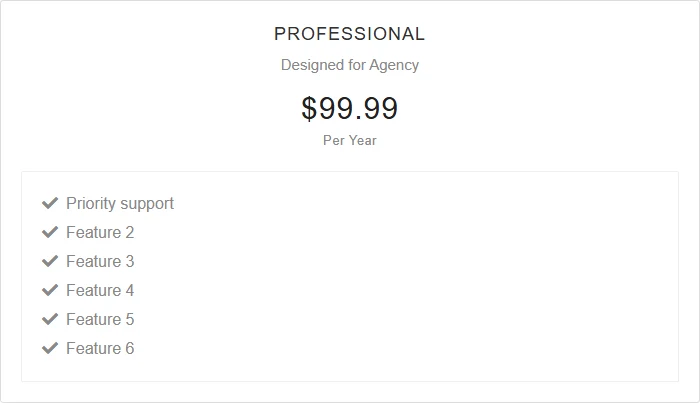
The feature list only exists when Content Style is set to Stylish List. The block starts in WYSIWYG content mode, which gives you a rich-text area instead — measured, no list items at all. Tooltips and the Show More button both hang off that list, so they need the same setting.
How It Behaves
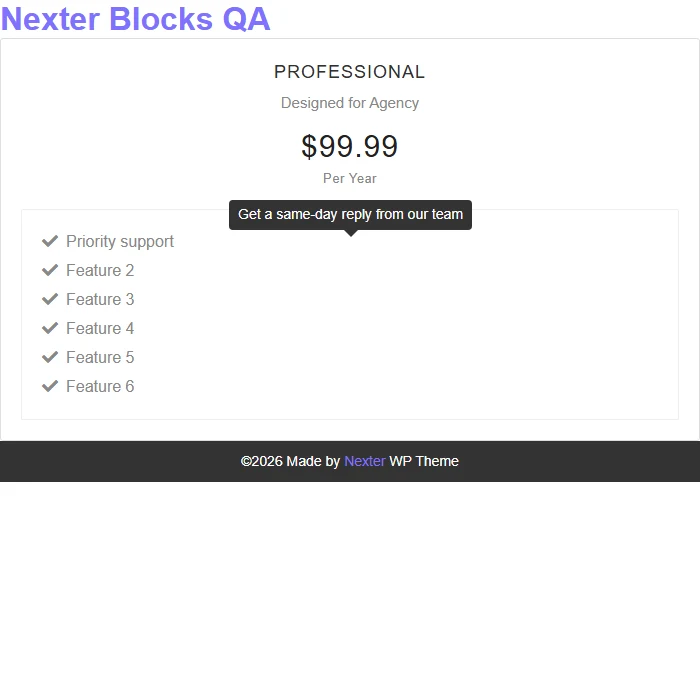
- Measured on a published page with Pro active: the feature row carries the tooltip data and hovering it opened a tooltip with exactly the text entered.
- Without Nexter Blocks Pro no tooltip markup is written at all — measured, zero tooltip elements on the page.
- The tooltip text is per feature, but the trigger and placement are per block — measured, both are read from the block’s own settings rather than the row’s. Every tooltip in one table opens the same way and in the same position.
- Only rows with the tooltip switched on carry one, so you can explain two features out of ten.
Limitations
- Pro only. Measured: no tooltip markup exists on the free plugin.
- Trigger and placement cannot vary per feature within one table.
- The feature list only exists when Content Style is set to Stylish List. The block starts in WYSIWYG content mode, which gives you a rich-text area instead — measured, no list items at all. Tooltips and the Show More button both hang off that list, so they need the same setting.
- Tooltips are short explanations, not a place for links and images — if a feature needs that much explaining it probably belongs on a separate page.
Troubleshooting
Nothing happens when I hover a feature
Check three things, in this order: Nexter Blocks Pro is active, Content Style is Stylish List, and that specific row has its Tooltip toggle on with some text in it.
My tooltips all appear in the same place
That is expected — placement is a block-level setting, measured. Only the text is per feature.
I want tooltips without Pro
They are not available on the free plugin. Keep the feature wording short enough to stand alone, or put the detail below the table.
