










WordPress ships with a search box, and it is not very good. It searches title and content together, sends every visitor to a separate results page, and gives you nothing to configure.
The Search Bar block replaces it with something you control: which post types are searched, which fields are matched, whether a taxonomy dropdown sits beside the input, and whether results appear under the box as the visitor types.
Before You Start
- Edition: Free. Measured with Nexter Blocks Pro deactivated, the Search Bar renders identically — form, input, dropdowns, suggestions and results all work without Pro.
- Block to enable: Search Bar, switched on under Nexter > Blocks in your WordPress dashboard.
- Published content to find. The block searches your real posts, so a site with nothing published returns nothing.
Steps
- Add the Search Bar block to your page.
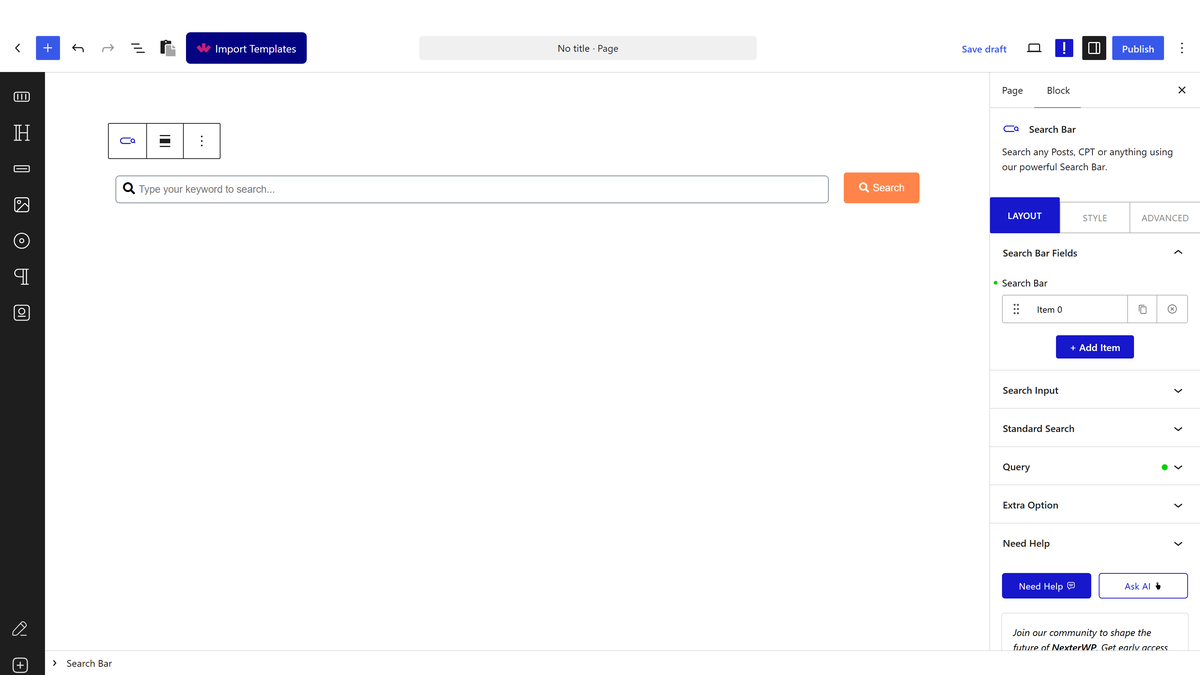
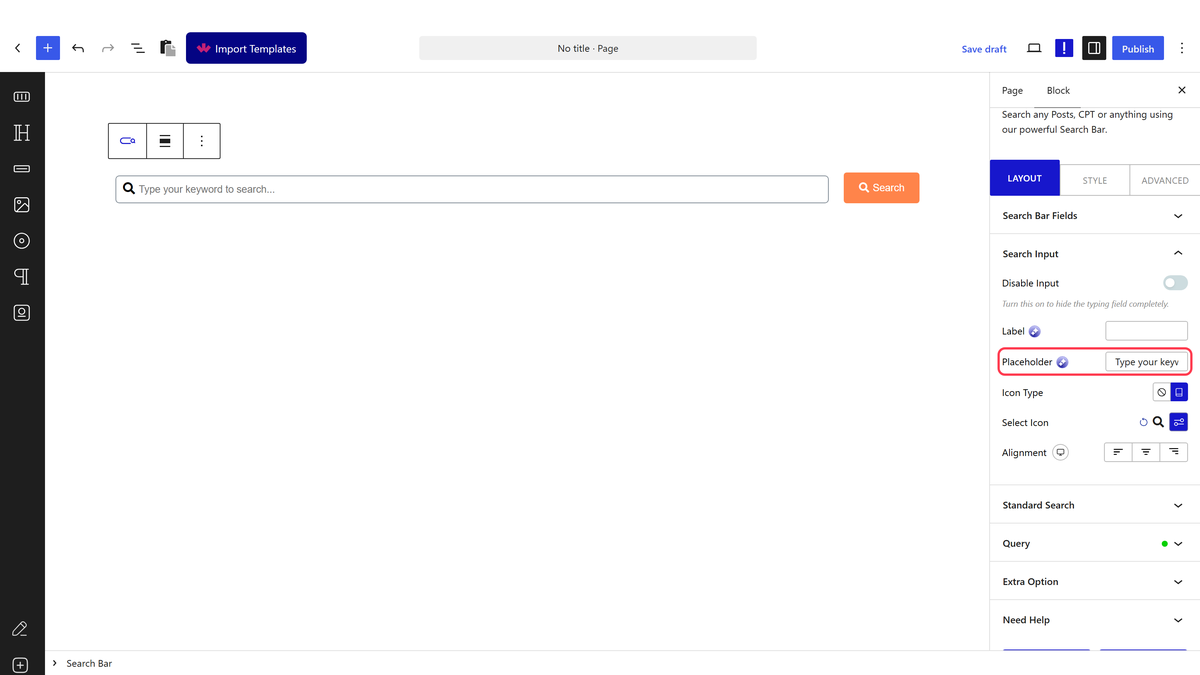
- Set the placeholder text so visitors know what they can search for.
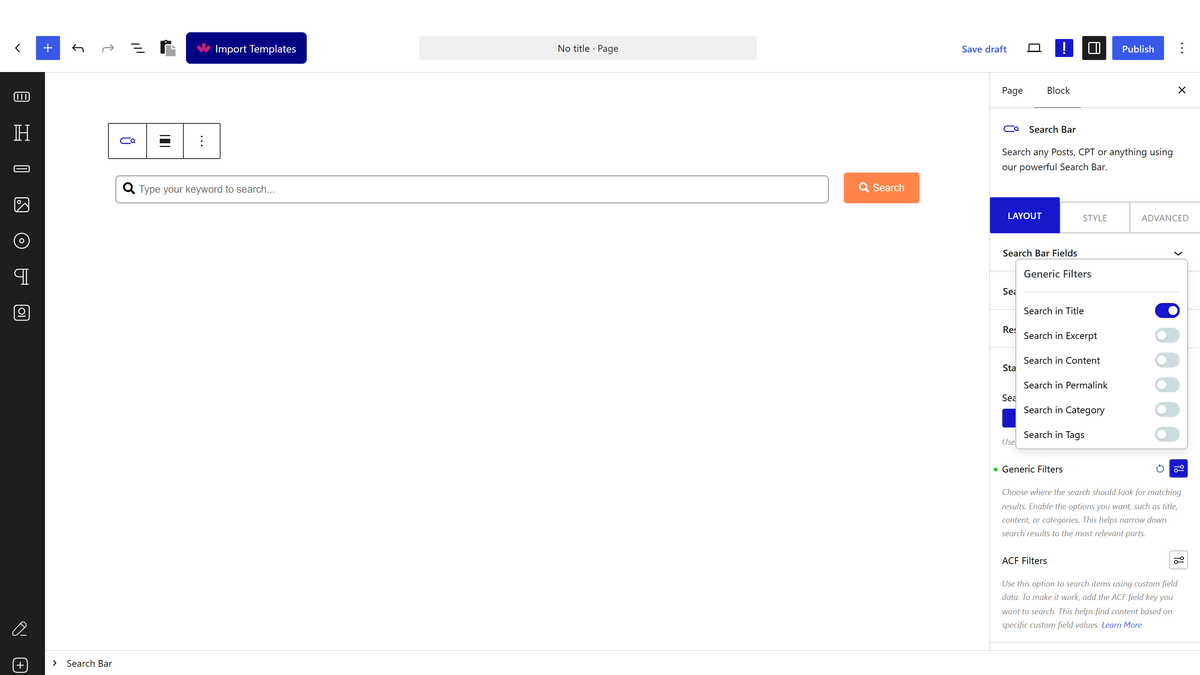
- Choose which fields the search matches — title, content, excerpt, slug, category or tag.
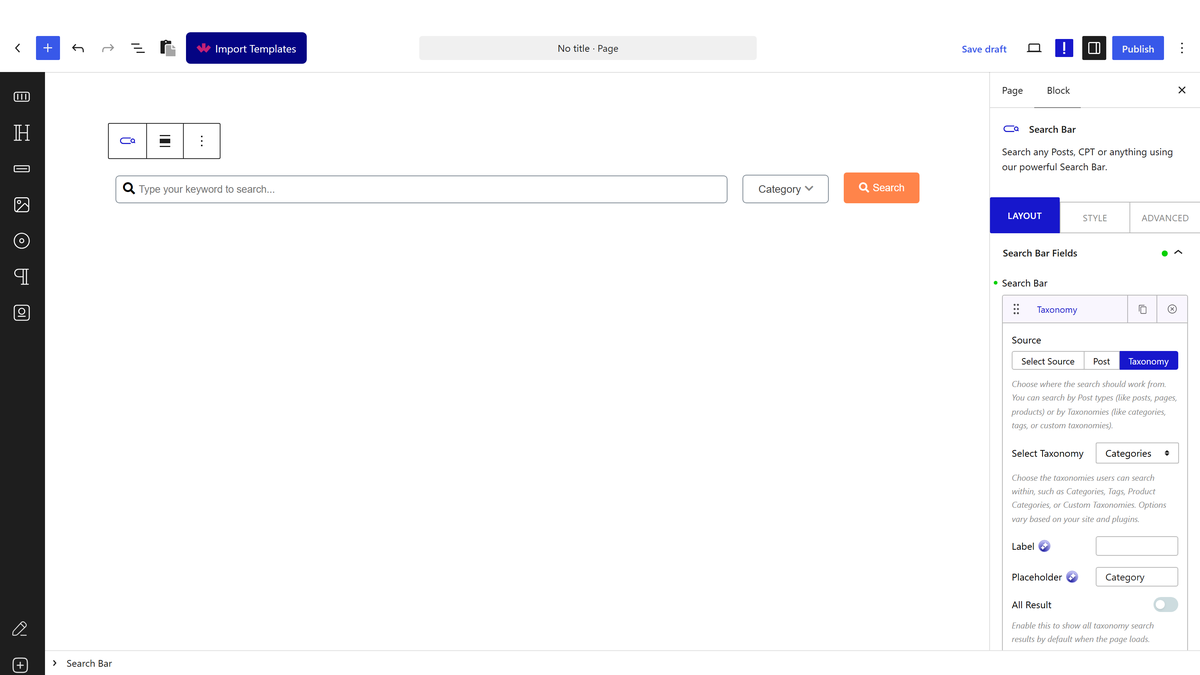
- Add a filter field sourced from a taxonomy if you want a working dropdown beside the input — category, tag or a custom taxonomy.
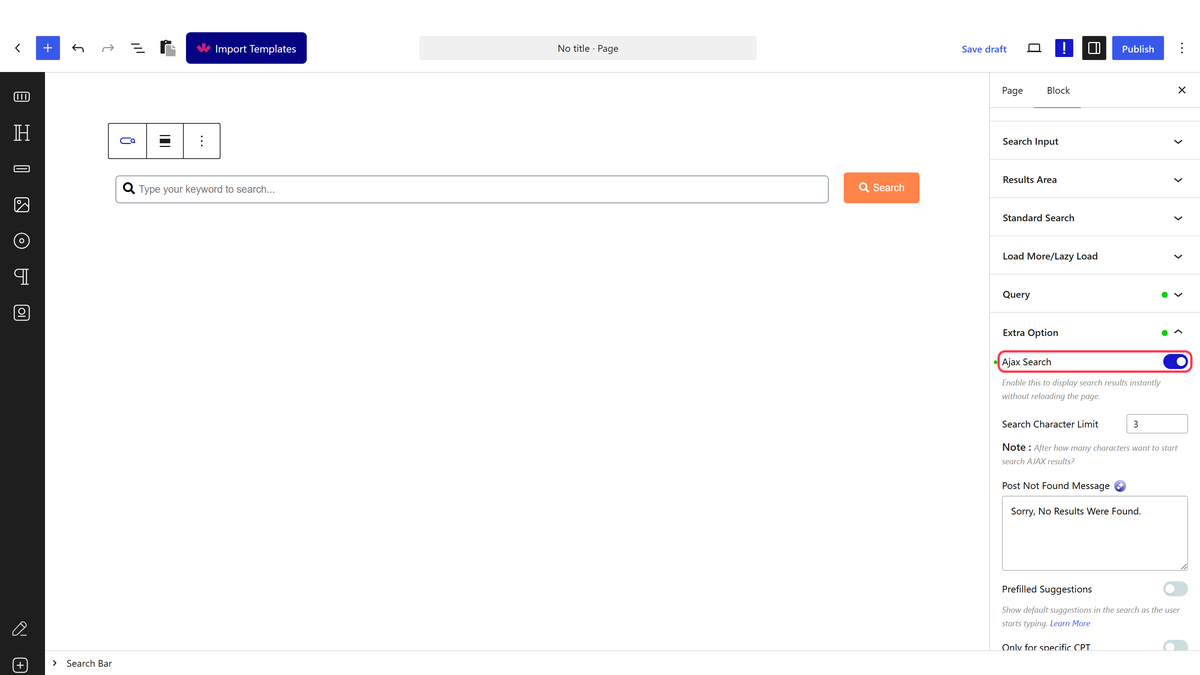
- Switch AJAX search on to show results under the box as the visitor types.
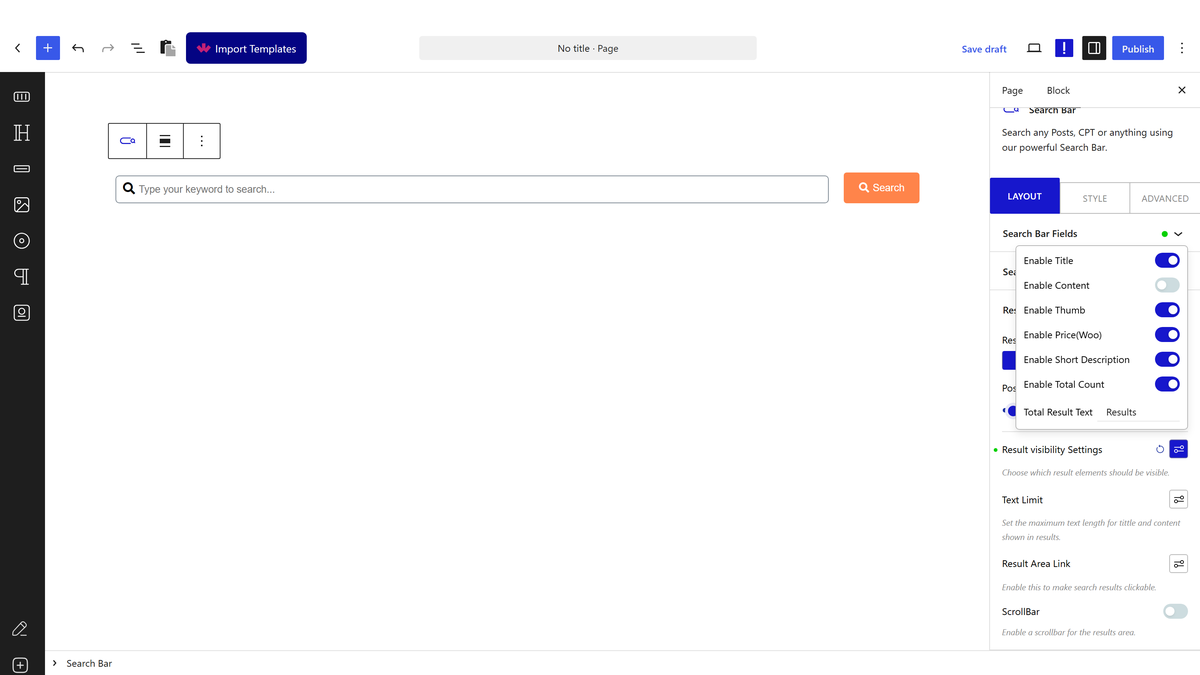
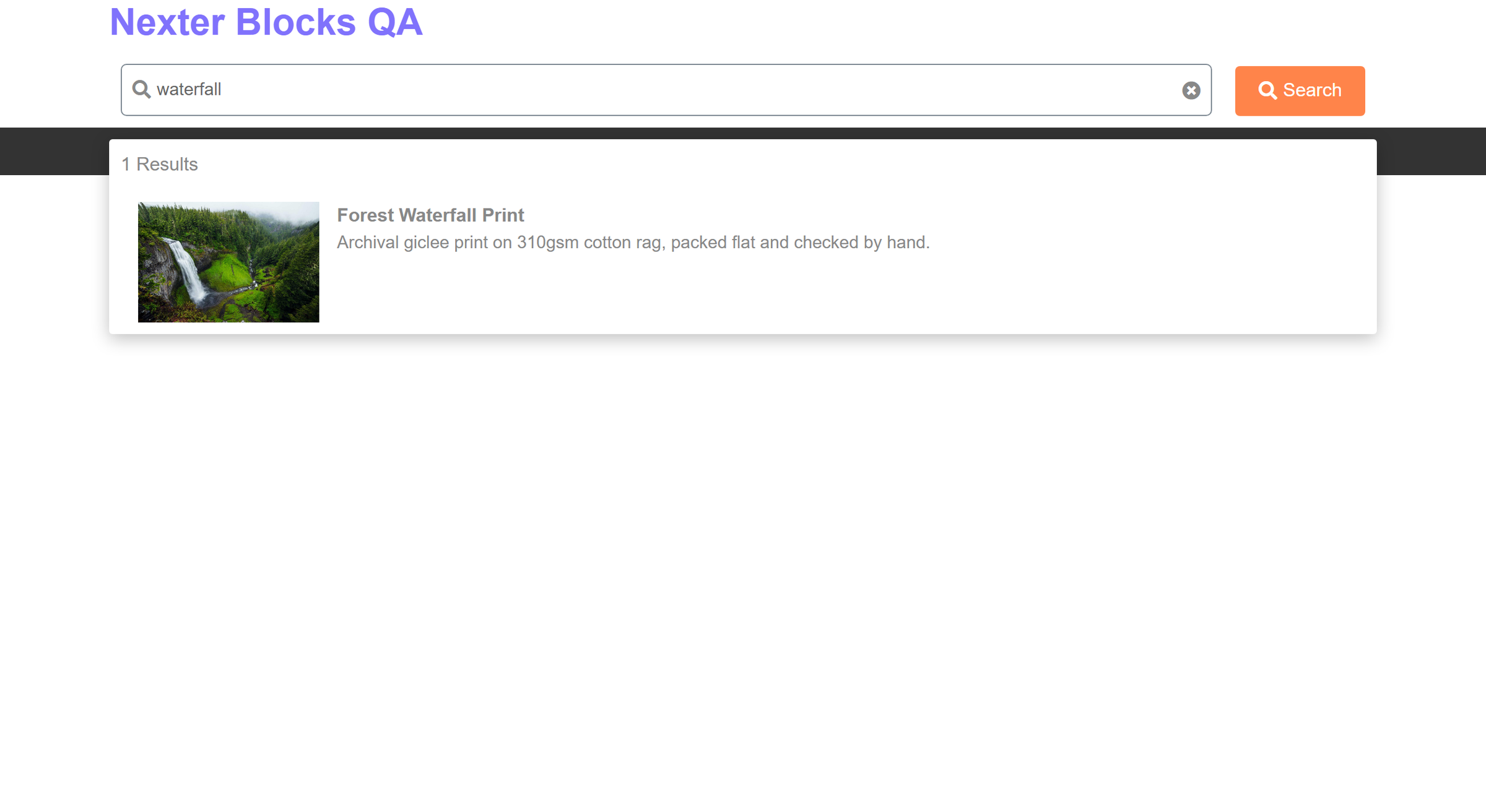
- Pick a result style and decide what each result card shows.
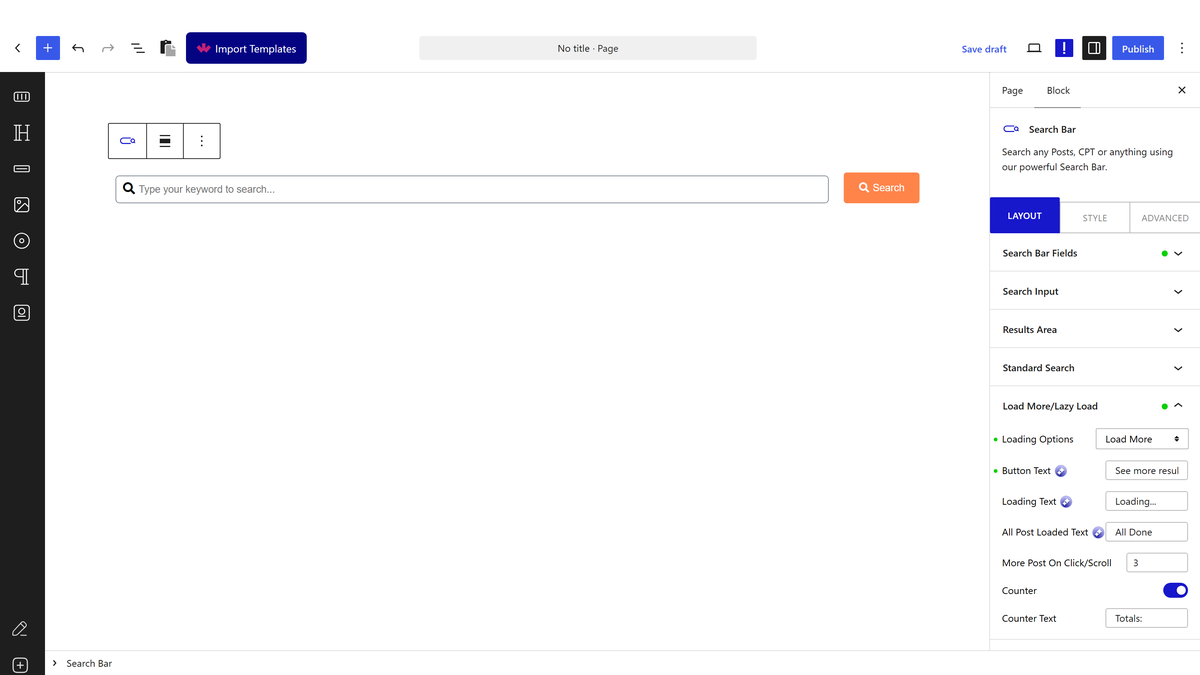
- Choose how longer result sets are handled — pagination, a load more button or lazy loading.
- Publish and search for something you know exists.
How It Behaves
The whole configuration is written onto the block wrapper as data attributes, and the script reads them to build each request. That is why every setting below takes effect without a page reload.
- Only the title is searched by default. Measured: with the default settings a term matched 4 posts by title; switching the search fields off entirely fell through to WordPress’s own query and matched 15.
- Full match is different from partial match. Measured: a partial search for a common word matched 4 posts by title, while the same term as a full match returned 0, because full match requires the entire field to equal the term.
- A filter dropdown narrows the query before it runs. Measured: choosing a single category returned exactly the 2 posts in it, out of 14.
- AJAX search has to be switched on for results to appear as you type. With it off the bar behaves as a plain form that submits to WordPress’s own search page.
- A character limit holds the search back. Nothing is requested until the visitor has typed at least the configured number of characters, which keeps a long list of requests from firing on the first letter.
- It degrades to an ordinary search. The block renders a real
<form method="get">pointing at your site root, so with JavaScript disabled the bar still submits and lands on WordPress’s own search results. - The excerpt line only appears when the post has one. Measured: posts with an empty excerpt render a card with no excerpt at all, which can make a result list look uneven.
Limitations
- Search matches text, not meaning. A search for a synonym of a word in your title will not find it.
- Matching more fields means slower, broader results. Turning content matching on took a measured result set from 4 to 15 on the same 14-post site.
- Product search needs WooCommerce. Without it the request returns an error rather than an empty result list.
- Show All Result does not currently render usable cards. Measured on 5.0.6: the pre-loaded list renders three empty placeholders with no title, thumbnail or link, and ignores the result count you set. Reported to the developers. Leave it off and let the visitor search.
- The per-field “post type” source does not work. Measured on 5.0.6: choosing Post as a filter field’s source saves with no post type attached and has no effect on the search. To restrict the whole bar to one post type, use Extra Option → Only for specific CPT instead — that setting is measured working. Reported to the developers; see the posts-only doc for the detail.
- Custom field search does not currently return results. Measured on 5.0.6 across several terms and fields: always zero. Reported to the developers; see the custom field search doc for the detail.
Troubleshooting
Nothing happens when I type
AJAX search is off by default. With it off the bar only reacts when the search button is pressed, and then it submits to WordPress’s own results page.
Results only start after a few letters
That is the character limit doing its job. Lower it if you want results sooner, but expect more requests.
A post I can see is not in the results
Check which fields are being matched. By default only the title is searched, so a term that appears only in the body will not match.
The results have no thumbnails
Either the thumbnail toggle is off, or those posts have no featured image set.
The results are not clickable
The result link option is what puts the link on the card. With it off the card renders with no href at all.
