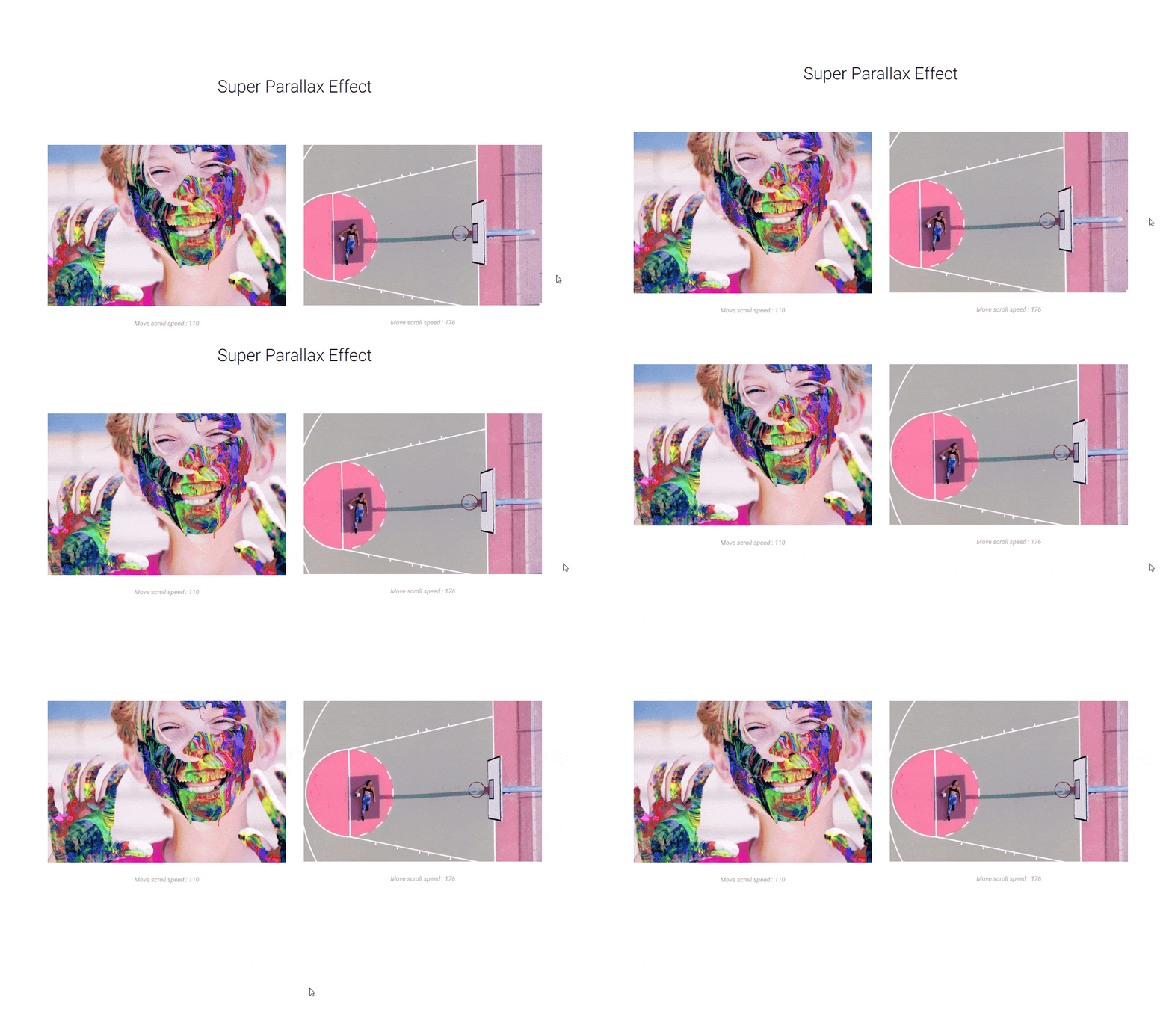










Do you want to add a parallax image in WordPress? Adding a parallax effect can enhance your design by creating an illusion of depth and movement as users scroll down the page, making the experience more engaging and visually dynamic.
With the Advanced Image block from Nexter Blocks, you can easily add a parallax effect to an image in WordPress.
To check the complete feature overview documentation of the Nexter Blocks Advanced Image block, click here.
Requirement – This block is a part of the Nexter Blocks, make sure it’s installed & activated to enjoy all its powers.
To do this, add the Advanced Image block to the page and follow the steps –
1. Add your image in the Upload Image section.
2. Then enable the Scroll Parallax toggle from the Special Options tab.
You can adjust the movement from the Move Scroll (X) and Move Scroll (Y) sections.
Now, you’ll see a parallax effect on the image as you scroll.