










Long descriptions crowd a price list. The name and the price are what people scan for; the detail only matters once something has caught their eye.
Style 2 of the Pricing List splits exactly along that line — name and price on the front of a card, description on the back, revealed by hovering.
For every External Form Styler setting in one place, see the main Pricing List guide.
Before You Start
- Edition: Free — works in Nexter Blocks (free) and with Nexter Blocks Pro.
- Block to enable: Pricing List, switched on under Nexter > Blocks in your WordPress dashboard.
- A Pricing List block already on the page — see the main Pricing List guide.
Steps
- Select the Pricing List block and set Style to Style 2.
- Fill in the tag, title and price — these appear on the front.
- Put the detail in the description — this goes on the back.
- Choose the Hover Effect: horizontal turns the card sideways, vertical turns it over.
- Publish and hover the card on the real page — it does not flip in the editor.

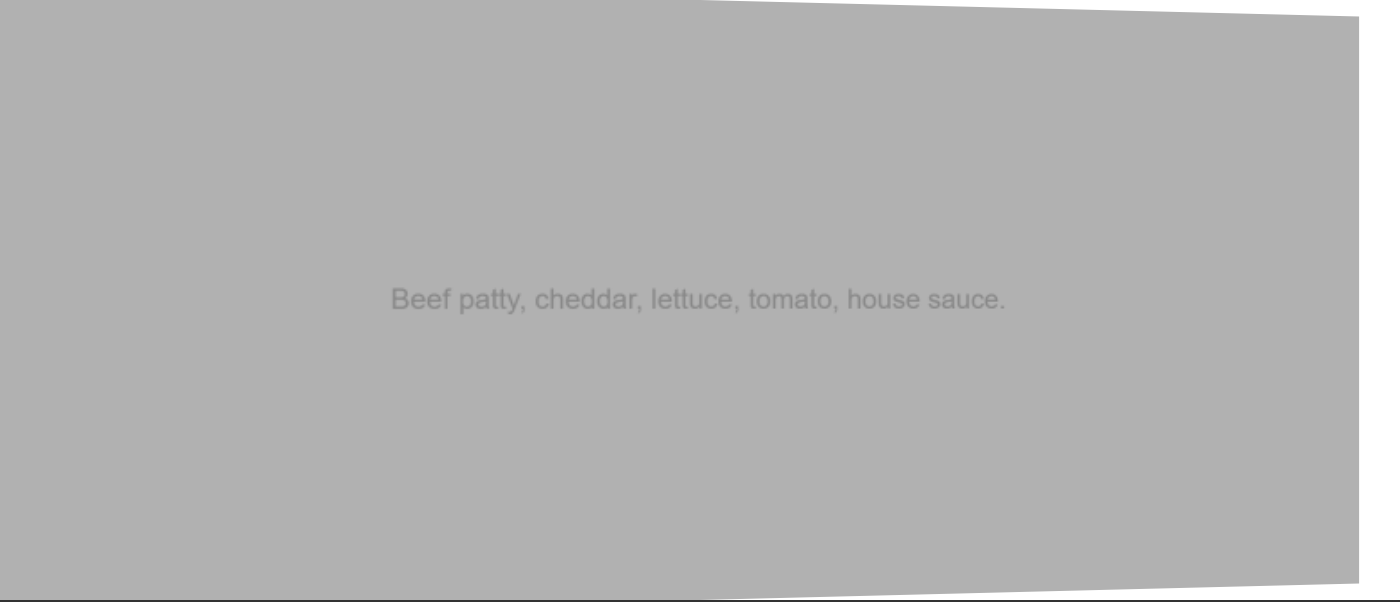
In the flip style the description moves to the back. Measured: the front carried the tag, title and price, and the description was on the reverse. It is not hidden — it is on the face the visitor sees after hovering.
How It Behaves
The Pricing List block is one row of a menu or price list — a tag, a title, a description, a price, and in one of the three styles an image.
- Measured on a published page: hovering the card rotated the front face a half turn and brought the back face square to the reader — about the vertical axis with Hover Effect set to horizontal, and about the horizontal axis when set to vertical.
- In the flip style the description moves to the back. Measured: the front carried the tag, title and price, and the description was on the reverse. It is not hidden — it is on the face the visitor sees after hovering.
- The hover effect sets the axis. Measured: horizontal gives the card a half turn about its vertical axis, vertical turns it about the horizontal one. The wrapper carries
flip-horizontalorflip-verticalto match. - No image in this style. Measured, an image set on a style 2 block is not rendered — style 3 is the one with pictures.
- One block is one item. There is no repeater inside it, so a menu of ten dishes is ten Pricing List blocks stacked up, not one block with a list in it. Build the first one, style it, then duplicate it.
Limitations
- Hover is not available on touch screens. A phone visitor has no way to turn the card, so anything essential must be on the front — do not hide the price or an allergy warning on the back.
- The Box Align setting currently has no effect. Measured on published pages across every style and every value: the alignment class is never added to the markup, so the block’s own alignment rules never apply. Use the block’s ordinary alignment and spacing controls instead. This is reported to the development team.
- The flip does not run in the block editor — publish the page to test it.
- Both faces share one height, so a long description on the back can leave the front looking empty. Keep the two sides roughly balanced.
Troubleshooting
The card does not flip
Check you are on the published page rather than the editor, and that Style is set to 2. Measured: the flip runs on the front end only.
My description has disappeared
It is on the back of the card, which is the point of this style. Hover to see it.
Nothing happens on my phone
There is no hover on a touch screen. Put anything the visitor must see on the front, or use style 1 or 3 where everything is visible at once.
My image is not showing
Only style 3 shows an image. Measured: the same block given the same picture rendered no image at all in styles 1 and 2, and the image in style 3. If you want photographs beside your items, style 3 is the only choice — choosing an image in the other two styles does nothing and gives no warning.
The card is much taller than its content
The front and back share a height, so the longer of the two sets it. Shorten the description or accept the space.
